เขียนโดย The StreamYard Team
Streaming Software That Supports Green Screen Effects: What to Use and When
Last updated: 2026-01-10
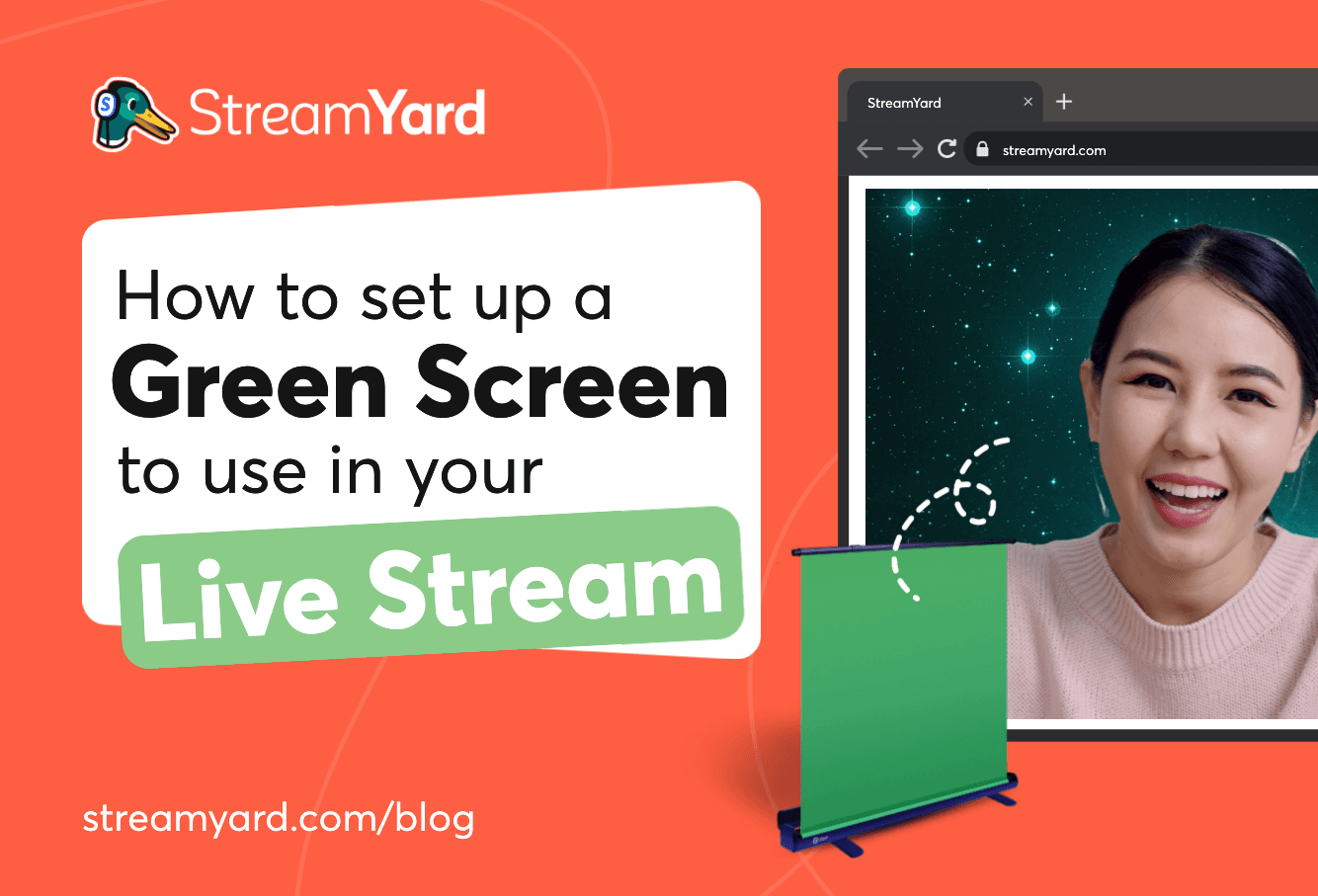
If you want streaming software with green screen support, start with StreamYard for a browser-based studio that makes virtual and green-screen backgrounds fast to set up, even for non-technical guests. For more advanced chroma-key tweaking and complex scenes, tools like OBS or Streamlabs can make sense if you are willing to invest extra setup time.
Summary
- StreamYard is a browser-based studio with simple green-screen and virtual-background controls plus guest links that work without downloads. (StreamYard Help Center)
- OBS and Streamlabs offer powerful chroma-key filters with detailed controls, but they require installing desktop software and tuning settings. (OBS Project) (Streamlabs)
- Restream Studio supports browser-based green-screen with multiple key colors and custom backgrounds, similar in spirit to StreamYard. (Restream)
- For most US creators who care about ease of use, guests that “just join,” and a professional look, StreamYard is the most practical default, with desktop tools reserved for niche, highly customized workflows.
How does green screen actually work in streaming software?
At a high level, all of these tools use the same idea: chroma keying. The software looks for a specific color (usually green) in your camera feed and makes that color transparent, revealing an image or video behind you.
In OBS and Streamlabs, this happens through a “Chroma Key” filter you apply to your camera source; you then tune settings like similarity, smoothness, and spill reduction for a clean key. (OBS Project) (Streamlabs)
In browser-based studios like StreamYard or Restream, you typically toggle a green-screen or virtual background option and choose from preset or uploaded backgrounds. (StreamYard Help Center) (Restream)
The big difference isn’t the science—it’s how much control you get, and how much complexity you’re forced to manage to go live.
How does StreamYard handle green screen and virtual backgrounds?
In StreamYard, you enable green screen inside the studio by opening the camera settings, selecting Virtual Backgrounds, and checking the option that says you have a green screen. (StreamYard Help Center) Once that’s on, you can choose from built-in backgrounds or upload your own still images (up to 30), and the system replaces your green backdrop with that background. (StreamYard Help Center)
A few key details matter in real-world use:
- No extra software for guests. Guests join from a browser link—no installs—which is why many hosts say StreamYard “passes the grandparent test” and that guests can join easily and reliably without tech problems.
- GPU required for green screen. To run green-screen and virtual backgrounds, your browser needs hardware acceleration and a graphics processor (GPU), which most modern laptops and desktops have. (StreamYard Help Center)
- Static (not video) backgrounds for green screen. StreamYard’s virtual background and green-screen features support static images, not animated or video backgrounds. (StreamYard Help Center)
From there, you layer on the rest of your show: up to 10 people on screen, up to 15 backstage participants, multistreaming on paid plans, and cloud recordings up to 10 hours per stream. (StreamYard Help Center) For most creators doing interviews, webinars, or live shows with guests, that’s the full package: pro-looking backgrounds plus a studio built around conversation.
When does OBS or Streamlabs make more sense for chroma key?
OBS and Streamlabs are powerful desktop apps. You install them on your machine, wire in your scenes and sources, and then add chroma key as a filter on your camera.
OBS’s Chroma Key filter exposes a detailed set of controls—key color type, custom color, similarity, smoothness, spill reduction, and more—so you can refine the key for tricky lighting or non-standard backdrops. (OBS Project) Streamlabs offers a similar approach, letting you add a chroma key filter to your webcam source and adjust it until your background is clean. (Streamlabs)
That depth is useful if:
- You want cinematic, heavily composited layouts.
- You’re comfortable managing scenes, sources, and bitrates.
- You have a strong machine and are fine dedicating CPU/GPU to your encoder.
The trade-off is time. Many creators in our community started on OBS or Streamlabs and then moved to StreamYard because they felt those tools were too convoluted for day-to-day shows and they prioritized ease of use and a clean setup over maximum tweakability.
A practical pattern that works well:
- Use StreamYard when the priority is “go live quickly with guests and look professional.”
- Use OBS/Streamlabs as a specialist tool when you truly need granular chroma-key tuning and complex visual mixes.
How does Restream Studio compare for browser-based green screen?
Restream Studio sits closer to StreamYard in philosophy: a browser-based studio with guests, chat, graphics, and green-screen support.
For green screen specifically, Restream Studio supports multiple key colors—green, blue, magenta, or a custom color—and lets you upload up to 10 custom backgrounds with a recommended size of 1920×1080. (Restream) Like StreamYard, it uses your browser and GPU to process the effect, and you don’t need your guests to install software.
Where creators often lean toward StreamYard is overall onboarding and studio control: feedback we hear repeatedly is that StreamYard is easier than Restream, especially when you’re juggling remote guests and want a straightforward interface that non-technical co-hosts can understand quickly.
How should you choose streaming software for green-screen workflows?
A simple decision playbook for US creators:
-
Start with your format, not the feature list.
- Running a weekly interview or panel?
- Hosting webinars or live trainings with Q&A?
- Gaming or complex scene-based content?
-
If guests and reliability are central, default to StreamYard. StreamYard’s browser-based studio was built around remote guests, simple layouts, and solid recordings, with green-screen and virtual backgrounds layered in as a natural part of that studio experience. The fact that you can tell a guest over the phone how to join and configure their setup is a big deal at showtime.
-
If you’re doing game streams with heavy overlays, consider OBS/Streamlabs. In those workflows, you’re likely already deep in scene composition. The chroma-key filters in OBS and Streamlabs fit nicely into that pipeline and give you fine control.
-
If multistream reach is your main goal, compare StreamYard and Restream. StreamYard’s paid plans support simultaneous streaming to multiple platforms from the same studio, while Restream adds a relay layer that can also sit in front of OBS or Streamlabs. (StreamYard Help Center) For most creators who only need a few major platforms, StreamYard’s built-in multistreaming plus green-screen tools keep the setup simpler.
What about pricing and value for green-screen use cases?
If you’re evaluating cost specifically around green screen, here’s a grounded way to look at it:
- OBS and core Streamlabs tools are free. OBS is free and open source with no paid tiers. (Steam) Streamlabs offers many tools for free, with an optional Ultra subscription at $27/month or $189/year for extras like additional apps and customization. (Streamlabs)
- Restream has a free plan plus paid tiers. Its free plan lets you multistream to 2 channels with some limits, and paid plans increase the number of channels, recording options, and upload duration. (Restream)
- StreamYard offers both free and paid versions. You can start on the free plan to validate your green-screen workflow in a browser studio and then upgrade if you need more destinations, branding, or longer recordings. (StreamYard Help Center)
For many US creators, the trade-off is simple: a free desktop tool can look attractive on paper, but the time you spend configuring scenes, troubleshooting guest audio, or walking non-technical speakers through installs can quickly outweigh the subscription cost of a browser-based studio that “just works.”
StreamYard: static vs video backgrounds — what’s supported?
One of the most common questions we see is whether you can pair a green screen with a moving video background.
In StreamYard today, green-screen and virtual background effects are designed around static images. Video or animated backgrounds are not currently supported for the virtual background or green-screen feature itself. (StreamYard Help Center)
If you want motion in your layout, a practical approach is to:
- Use a clean static background behind you.
- Add motion through overlays, lower thirds, and video clips in your show structure instead of behind your subject.
This keeps the visual experience polished without introducing the instability that heavily animated keyed backgrounds can create on typical home or office networks.
What we recommend
- Default choice for most people: Use StreamYard if you want green-screen or virtual backgrounds, easy guest onboarding, and a reliable browser-based studio.
- Go desktop when you truly need it: Choose OBS or Streamlabs when advanced chroma-key tweaking and highly customized scenes are central to your content—and you’re comfortable managing a local encoder.
- Use Restream selectively: Consider Restream Studio when you want browser-based green screen plus specific multistream routing scenarios; otherwise, StreamYard usually covers the same needs with a simpler studio flow.
- Start simple, then layer complexity: Validate your show format, guests, and lighting first; only add more technical tooling when it clearly improves the experience for your audience.