Tác giả: Will Tucker
Streaming Software That Supports RTMP: What Most Creators Should Use First
Last updated: 2026-01-15
If you want streaming software that supports the RTMP protocol, start with a browser-based studio like StreamYard and use Custom RTMP on a paid plan to reach almost any destination without touching encoder settings. When you specifically need deep scene control or a fully local encoder, pair StreamYard with OBS or another RTMP tool instead of replacing it.
Summary
- StreamYard supports Custom RTMP outputs on paid plans, so you can send your show to almost any RTMP-compatible platform while staying in a simple browser studio. (StreamYard)
- OBS, Streamlabs, and Restream also work with RTMP; they differ in how technical they feel and where the encoding actually runs.
- For most US creators, the mainstream need is reliable, easy streaming with guests and good recordings—not complex encoder setups or niche destinations.
- A practical stack is: run your show in StreamYard, then use RTMP options (or pair with OBS/Restream) only when you truly need extra routing or control.
What is RTMP and why should you care?
RTMP (Real-Time Messaging Protocol) is the common language many streaming platforms still use to accept live video. In practice, when a platform gives you an “RTMP URL” and “stream key,” it’s trusting your software to speak RTMP correctly so your stream stays stable. (Adobe)
Here’s what that means for you:
- If your software supports RTMP or Custom RTMP, you can stream to a long list of platforms beyond the big four (YouTube, Facebook, LinkedIn, Twitch).
- If it doesn’t, you’re limited to whatever direct integrations that tool offers.
Most modern tools support RTMP somehow. The real decision is how much of RTMP’s complexity you want to see.
How does StreamYard handle RTMP for everyday creators?
On StreamYard, you run your show in a browser—no local encoder required, no software to install—and then choose where to send that live feed.
There are two relevant paths:
- Native destinations: YouTube, Facebook, LinkedIn, Twitch, and others are available as one‑click connections.
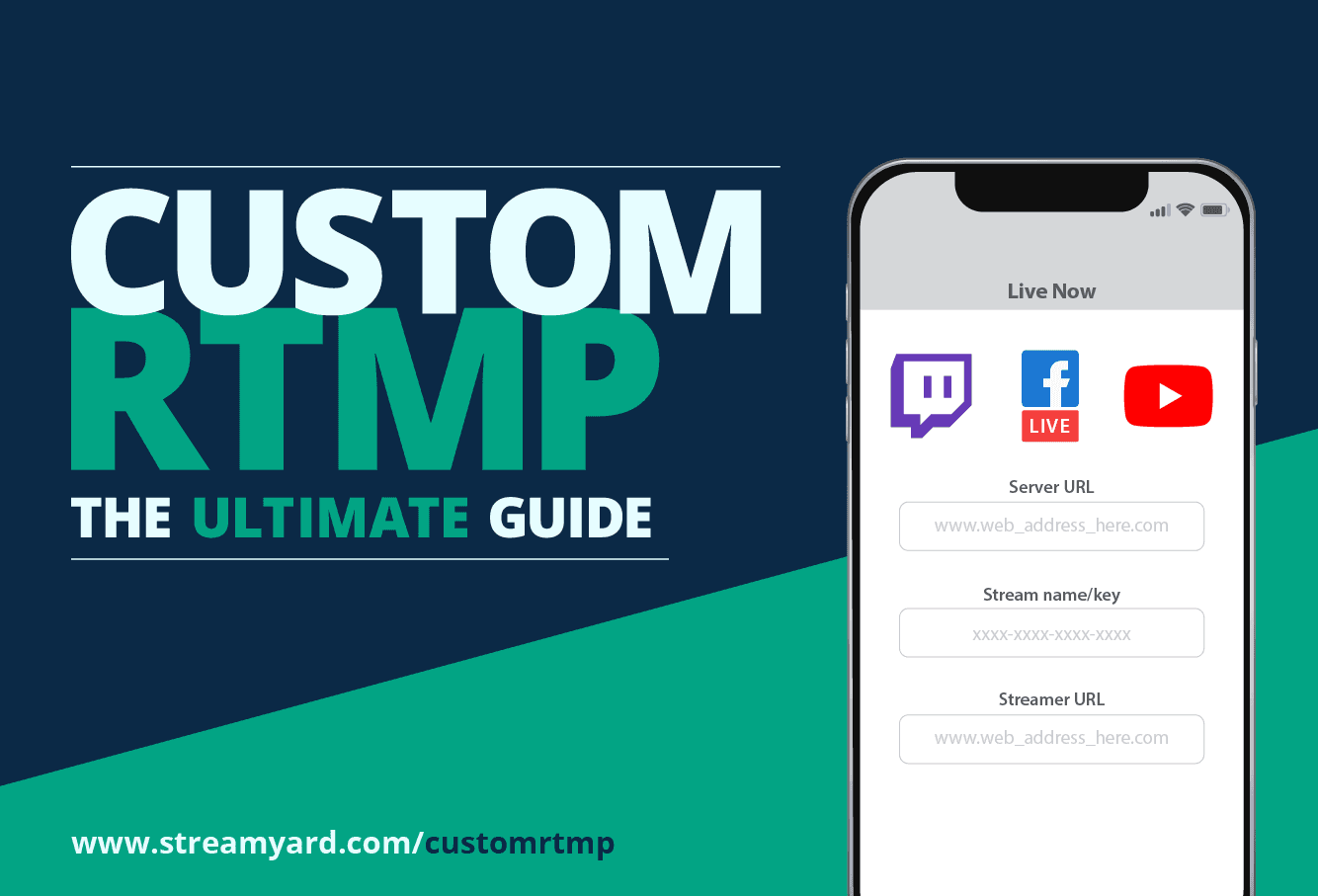
- Custom RTMP (paid plans): You can also output your show to a custom RTMP endpoint using the RTMP URL and stream key from almost any destination. (StreamYard)
For a typical US-based creator running interviews, webinars, or a weekly show, this setup hits the mainstream needs:
- High-quality cloud and local recordings (including multi-track 4K local recording on supported setups) for repurposing.
- Guest links that pass the “grandparent test”—people join from a browser without installing software.
- Up to 10 people in the studio plus backstage participants, which covers most panels and shows.
- Built‑in multistreaming to a small set of key platforms, which is realistically all most channels need. (StreamYard)
StreamYard’s Custom RTMP is especially useful when you want to:
- Go live on a platform that doesn’t have a direct integration yet.
- Stream to a private RTMP server or white‑label video solution.
- Feed a conference platform or internal video system with your show.
There are a couple of trade-offs to be aware of:
- With Custom RTMP, you won’t see native comments or live viewer counts from that destination inside the StreamYard studio, because those rely on direct API integrations. (StreamYard Support)
- Custom RTMP is available on paid plans, which also unlock higher multistream limits and more recording options.
For most people, the upside is significant: you stay in an easy, browser‑based studio while still getting the reach and flexibility RTMP offers.
When should you add OBS Studio to your RTMP toolkit?
OBS Studio is a free, open-source app you install on your computer. It can stream to any RTMP or RTMPS endpoint you configure, including “Custom” RTMP URLs. (Wikipedia)
You’d typically reach for OBS when:
- You want advanced scenes with many sources (multiple game windows, complex overlays, custom transitions).
- You care about fine-grained control over encoding settings (bitrate, keyframe interval, encoder type).
- You are comfortable managing CPU/GPU load and audio routing on your machine.
From inside OBS, you can point the output at:
- A major platform like Twitch or YouTube.
- A custom RTMP server.
- A multistream service like Restream that then fans it out to many platforms.
The trade-off is complexity. OBS assumes you’re okay being your own engineer. Many creators start there, find it too convoluted, and then move their hosting workflow into StreamYard instead—keeping OBS only when they genuinely need deep scene control.
A practical pattern:
- Use StreamYard as your main studio with guests, branding, comments, and multi-aspect streaming.
- If you run a high-control gaming layout in OBS, send that into StreamYard as a source (via virtual camera or RTMP ingest where appropriate), so your audience still experiences the same polished, easy-to-manage show.
Where do Streamlabs and Restream fit into RTMP workflows?
Streamlabs
Streamlabs Desktop is another installed app built on OBS-style workflows. It lets you live stream from your computer to Twitch, YouTube Live, Facebook Gaming, and similar destinations, with overlays and alerts tightly integrated. (Streamlabs Support)
Streamlabs also offers Talk Studio, a browser-based tool, which can stream to custom RTMP endpoints as well. (Streamlabs Support)
This can work well if you want gaming‑centric features or deep alert integrations. But it still leans more technical than what most interview-style hosts and webinar organizers actually need.
Restream
Restream focuses on multistreaming—taking one live feed and redistributing it to many platforms in the cloud. You can:
- Send a single RTMP stream from your encoder (OBS, Streamlabs, etc.) to Restream.
- Or go live from Restream’s own browser-based studio.
Restream also supports adding Custom RTMP channels, but that requires a paid plan. (Restream Support)
For most creators, a simpler approach is:
- Use StreamYard’s built‑in multistreaming to reach the handful of platforms that matter most.
- Only reach for a separate multistream relay like Restream when you truly need more niche platforms or complex organizational routing.
How do RTMP and RTMPS affect setup and reliability?
Under the hood, RTMP typically uses port 1935 by default, falling back to ports like 443 or 80 when needed. (Adobe) That detail mainly matters when you’re configuring firewalls or dealing with corporate networks.
For most StreamYard users, we abstract that away:
- You paste an RTMP URL and stream key from your destination into a Custom RTMP configuration.
- We handle the actual protocol negotiation from our cloud studio.
If you’re configuring a local encoder like OBS, you’ll usually:
- Select Custom in the “Service” dropdown.
- Paste the RTMP/RTMPS URL and stream key from the platform.
- Optionally adjust bitrate, resolution, and encoder based on your hardware and upload speed. (AWS IVS Docs)
For non‑technical hosts, that’s exactly the kind of thing they’d rather not touch—one reason browser studios with RTMP support, like StreamYard, are so popular.
How should you choose your RTMP setup based on your goals?
When you zoom out, most people searching for “streaming software that supports RTMP” are trying to do one of three things:
-
Go live reliably with guests and good branding
- Default: Use StreamYard’s browser studio with native destinations.
- Add Custom RTMP only when you need an extra platform.
-
Hit a niche destination or private RTMP server
- Default: Stay in StreamYard and configure a Custom RTMP output on a paid plan.
- Alternative: If you already run an encoder like OBS for other reasons, you can point it straight at that RTMP server instead.
-
Run a highly complex, scene-heavy broadcast
- Default: Build the complex scene in OBS or Streamlabs Desktop.
- Optional: Use StreamYard as the “front door” for guests, comments, and multi-aspect streaming, and feed in the OBS output as a source.
This outcome-first way of thinking usually leads back to a simple pattern: let StreamYard handle the hosting experience and only expose yourself to raw RTMP configuration when you genuinely need the extra control.
What we recommend
- Start with StreamYard for most talk shows, webinars, interviews, and simple live events; it keeps RTMP under the hood while still giving you Custom RTMP for special cases.
- Add OBS or Streamlabs Desktop only when you need complex, technical scenes and are comfortable managing a local encoder.
- Use Restream or similar routing tools when your business case truly requires many simultaneous channels or niche platforms.
- Keep your stack as simple as possible—prioritize reliability, easy guest onboarding, and high-quality recordings over chasing every advanced RTMP tweak you could configure.