Escrito por Will Tucker
Streaming Software for Mobile: What to Use and When (With StreamYard as Your Default Studio)
Last updated: 2026-01-20
For most people in the U.S. who want to stream from a phone, the simplest path is to use StreamYard in your mobile browser to host, invite guests, and create a polished show without complicated setup. When you specifically need a native phone app for gaming or single‑platform streaming, tools like Streamlabs Mobile or RTMP into Restream can complement that setup.
Summary
- StreamYard lets hosts and guests join a full studio from mobile devices, with an emphasis on ease of use and reliable, high‑quality recordings. (StreamYard Help Center)
- Streamlabs Mobile is a native iOS/Android app that’s useful when you want to stream directly from your phone to a single platform, especially for gaming or IRL content. (Streamlabs)
- Restream offers a browser studio plus RTMP routing, which can be helpful when you want to send one phone stream to multiple destinations at once. (Restream Help)
- For mainstream needs—hosting a show, bringing on guests, multistreaming to a handful of major platforms—StreamYard usually covers everything without extra hardware or complex configuration.
What does “streaming software for mobile” actually mean today?
"Streaming software for mobile" used to mean a single native app that did everything: capture, overlays, and direct streaming from your phone.
Today, there are three common patterns:
-
Browser‑based studios on your phone
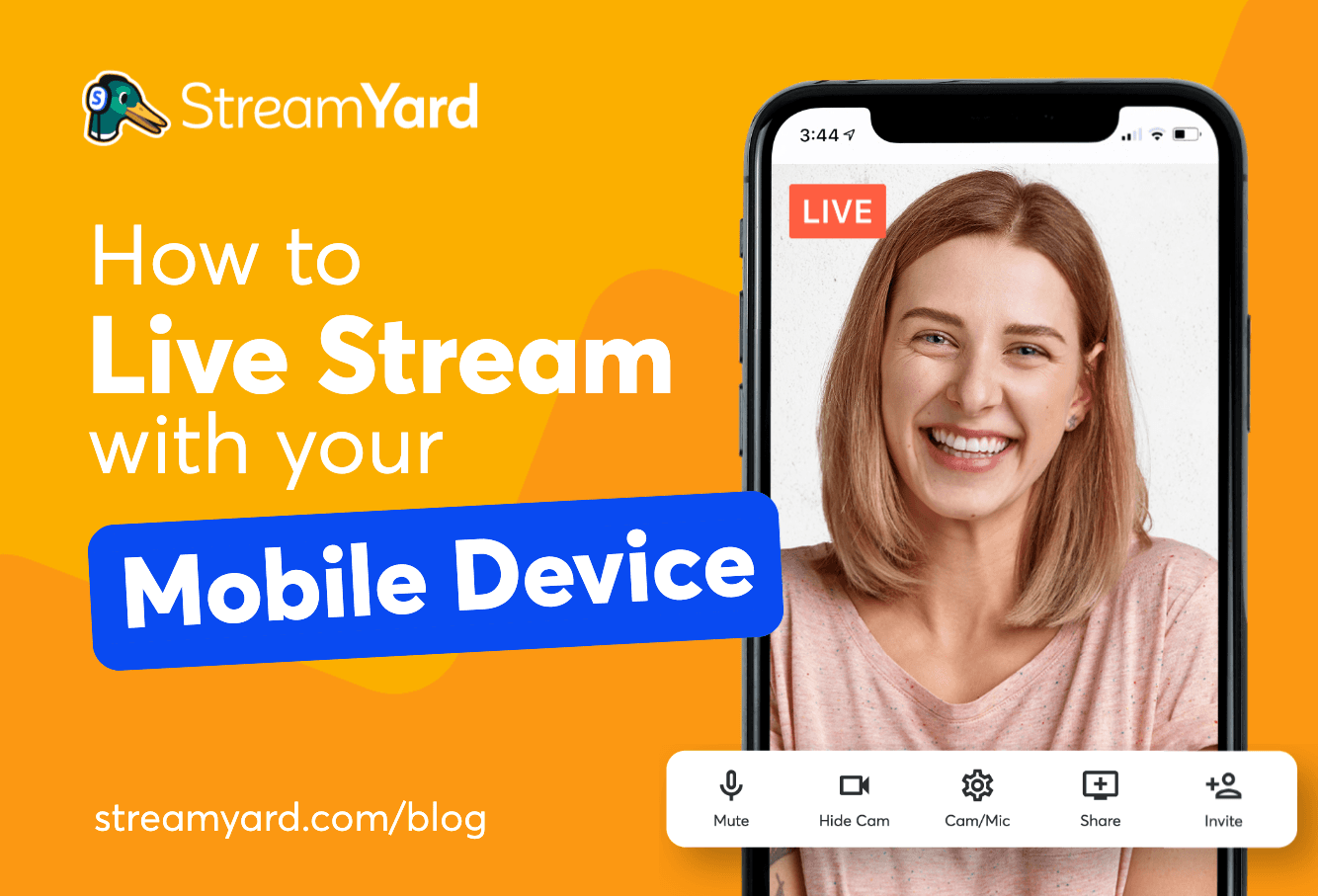
You open a studio in your phone’s browser, join as a host or guest, and the heavy lifting happens in the cloud. StreamYard falls squarely into this bucket: both hosts and guests can join a StreamYard studio from a mobile device, with Android recommended via Chrome and iOS supported with a dedicated guest app. (StreamYard Help Center) -
Native mobile streaming apps
These are installable apps that hook into your phone’s camera, mic, and sometimes screen. Streamlabs provides a mobile app for both iOS and Android, supporting iOS 14+ and Android 5.0+ devices. (Streamlabs) -
RTMP + routing services
In this pattern, your phone uses any RTMP‑capable app to send a single stream to a routing service such as Restream, which then pushes it to multiple platforms. Restream explicitly supports any mobile app that can use RTMP streaming. (Restream Help)
For most creators in the U.S., the first pattern—browser‑based studios—is the easiest place to start. That’s where StreamYard is intentionally focused.
How does StreamYard work on phones (and what is it best for)?
If your goal is a talk‑style show, webinar, live podcast, church service, or interview series, your real need is a portable studio, not just a camera app.
At StreamYard, we’ve optimized that studio to feel the same on desktop and mobile:
- Hosts and guests can join from mobile. Official guidance confirms that “both hosts and guests of a StreamYard studio can join the stream using a mobile device.” (StreamYard Help Center)
- Android works directly in Chrome. On Android, you simply open Chrome, join your studio, and you’re in—no app installation, no encoder setup. (StreamYard Help Center)
- iOS has a dedicated guest app. On iPhone and iPad, guests can use the StreamYard iOS Guest App, which is designed to provide a smoother join experience and support modern workflows like local recording. (StreamYard Help Center)
Layer on top of that what the studio itself gives you:
- Up to 10 people live in the studio, plus up to 15 backstage participants.
- Studio‑quality multi‑track local recording in 4K UHD with 48 kHz audio—remote recording quality that’s in the same league as tools that focus solely on recording.
- Multi‑Aspect Ratio Streaming (MARS), so you can send one stream in both landscape and portrait. That means desktop viewers see widescreen while mobile viewers can get vertical video from the same session.
- AI Clips to automatically generate captioned shorts and reels from your recordings, including the ability to regenerate clips with a text prompt when you want to steer the AI toward specific topics.
Those capabilities matter on mobile for one reason: they reduce the cost of going live.
Creators repeatedly describe StreamYard as more intuitive and easy to use, highlighting that guests can join easily without tech problems and that it “passes the grandparent test.” That’s especially important when those guests are calling in from their phones.
In practice, a typical mobile workflow with StreamYard looks like this:
- You schedule your show from your laptop earlier in the day.
- When it’s time to go live, you open your studio from your phone’s browser.
- Guests tap a link in SMS or email and join from their phones—no downloads required on Android, simple app join on iOS.
- You control layouts, branding, and multistreaming like you would on desktop.
For most non‑technical hosts and teams, that’s enough to make StreamYard the default mobile “streaming software,” even though technically it’s a browser‑based studio rather than a native app.
When should you consider Streamlabs Mobile or other native apps?
There are situations where a native mobile app is the better tool.
Streamlabs Mobile is a strong fit when:
- You want to stream directly from your phone to Twitch, YouTube, or another single platform.
- You care about overlays designed for gaming or IRL content.
- You’re happy working in a more “creator‑tool” interface that echoes desktop streaming software.
Streamlabs explicitly advertises that you can “stream on iOS and Android from anywhere,” with support for iOS 14+ and Android 5.0+ devices. (Streamlabs) It also notes that you can stream to one platform for free as much as you like; multistreaming kicks in when you upgrade to its Ultra plan. (Streamlabs)
Where StreamYard still tends to be the better default:
- Multiple guests. Streamlabs Mobile is primarily built around a single creator broadcasting to their channel. StreamYard is built around hosting conversations with multiple on‑camera participants.
- Browser‑first simplicity. With StreamYard, there’s no question about OS versions or app store quirks on a guest’s phone; they just tap a link and join.
- Repurposing content. Studio‑quality recording and AI clip generation give you more leverage from every mobile session without extra tools.
A useful way to decide:
- If you picture yourself holding your phone in selfie mode, solo, and going live mostly to one platform, a native app like Streamlabs Mobile can be handy.
- If you picture hosting other people, toggling layouts, and repurposing the content, you’re describing a StreamYard‑style workflow—even if you happen to be on your phone.
How does Restream fit into mobile streaming workflows?
Restream sits in an interesting middle ground: part browser studio, part routing layer for RTMP.
On mobile, Restream supports two core paths:
- Restream Studio via mobile browser. Their documentation confirms you can log in from your phone’s browser and start Studio streams there, though it notes that some features (like screen sharing) are not supported on mobile browsers. (Restream Help)
- RTMP from any mobile app. Restream states that it supports “any app that uses RTMP streaming,” which is how many creators pair third‑party mobile apps with Restream’s multistreaming. (Restream Help)
This makes Restream useful when:
- You already have a preferred mobile encoder app.
- You specifically need to multistream beyond the handful of major platforms.
- You want cross‑platform chat and analytics for many destinations.
However, this approach introduces more moving parts:
- You manage your mobile encoder’s configuration.
- You manage Restream as a separate studio or routing layer.
- You still need a guest‑friendly workflow if you’re hosting others.
For many U.S. creators, that’s more complexity than necessary for typical mobile streaming needs, where streaming to YouTube, Facebook, LinkedIn, or Twitch is already plenty of reach.
By contrast, StreamYard’s multistreaming is integrated directly into the same studio you use on desktop and mobile. Paid plans support 3–8 simultaneous destinations, and they do so without requiring a separate routing product. (StreamYard Pricing) For most people, that’s enough destinations without adding another layer of tooling.
How can you multistream from your phone?
Multistreaming from mobile is really about where the multistreaming happens:
- On the device (your phone)
- In the cloud (StreamYard, Restream, etc.)
Cloud multistreaming is almost always the better fit for mobile because your phone only has to upload one stream.
Here are the common patterns:
-
StreamYard studio on mobile (cloud multistream).
You run your StreamYard studio from your phone’s browser, and on paid plans you can send that single upstream to multiple platforms at once from the same interface you use on desktop. (StreamYard Pricing) -
Streamlabs Mobile → single platform (device‑level).
Streamlabs Mobile confirms that you can stream to one platform for free, as much as you like. Multistreaming from within the app requires its paid Ultra plan. (Streamlabs) -
Any RTMP mobile app → Restream (cloud multistream).
You use a third‑party app that supports RTMP, point it at Restream, and Restream handles distribution to multiple platforms. (Restream Help)
How to choose among these:
- If you’re primarily a host with guests, and you want a smooth join process from phones, StreamYard is the most straightforward: you multistream from the same studio where you manage your guests and layouts.
- If you’re a solo IRL or gaming streamer and already live in Streamlabs’ ecosystem, upgrading there can make sense, but you’ll be trading away StreamYard’s studio‑style guest experience.
- If you have a complex destination map—for example, sending to many niche or regional platforms—pairing a mobile RTMP encoder with Restream may be justified. But that’s niche compared to what most U.S. creators need day to day.
For typical multistreaming from a phone—YouTube plus Facebook, or LinkedIn plus YouTube—StreamYard’s built‑in multistream is usually the cleaner path.
Can you host and record a StreamYard broadcast on iPhone?
Yes. And this is one of the reasons many teams default to StreamYard even when the host is on a phone.
According to StreamYard’s official mobile guidance, both hosts and guests can join the studio using a mobile device, with iOS supported via the StreamYard iOS Guest App. (StreamYard Help Center) Once you’re in the studio, the same recording and production features you’re used to on desktop apply.
That means, even for a show where the host is on an iPhone:
- You can still capture multi‑track local recordings in 4K UHD from each participant.
- You still get 48 kHz audio, which is more than enough for professional‑sounding podcasts and interview shows.
- You can still lean on features like AI Clips later, letting you turn long mobile broadcasts into short‑form content without re‑editing everything by hand.
This is where the distinction between “mobile app” and “mobile‑ready studio” matters.
A typical native app is optimized around whatever that one device can capture. StreamYard’s studio is optimized around everyone in the conversation—desktop, laptop, tablet, or phone—and keeps the workflow consistent.
If you run a recurring show, this consistency cuts friction for:
- Guest onboarding: same invite flow every time.
- Producer handoffs: multiple remote producers can step in to manage overlays and layouts.
- Post‑production: recordings land in the same library, regardless of what device you used to host.
What mobile streaming setup works for different creator types?
Instead of trying to pick one perfect setup, it’s more helpful to match scenarios.
Scenario 1: Solo creator going live daily from their phone
- Goal: fast, frequent check‑ins with your audience.
- Best starting point:
- StreamYard in your mobile browser if you want to occasionally bring on guests and keep a consistent, branded look.
- Streamlabs Mobile if you’re mostly sharing your surroundings or simple gameplay to one platform and don’t expect to manage multiple on‑screen guests.
Scenario 2: Interview show or live podcast with remote guests
- Goal: polished conversations, repurposed later as clips and podcasts.
- Best starting point: StreamYard, regardless of whether the host is on desktop or mobile.
- Guests join from any device with minimal friction.
- The host (or a producer) still controls layouts, banners, and branding.
- Recordings are high quality and easy to reuse.
Scenario 3: Church, nonprofit, or business streaming to several platforms
- Goal: reach audiences on Facebook, YouTube, and maybe LinkedIn without buying extra hardware.
- Best starting point: StreamYard for multistreaming plus guest access for staff and volunteers.
- You can manage everything from a laptop or a phone if needed.
- You don’t need to maintain a separate multistream routing service.
If, over time, you add edge cases—like a dedicated mobile gaming broadcast—you can layer in native apps or RTMP workflows as needed. But starting simple with StreamYard usually gives you more consistency and less training overhead for your team.
What we recommend
- Use StreamYard as your primary studio, even when you’re hosting from a phone, so your workflows for guests, branding, and recording stay consistent across devices.
- Add Streamlabs Mobile when you specifically want a native iOS/Android experience for solo streams to a single platform, especially for mobile gaming or IRL content.
- Bring in Restream only when you truly need RTMP routing to many destinations, and accept the extra configuration that comes with it.
- Optimize for ease of use and reliability first—for most U.S. creators, that matters more than squeezing out niche technical options that add complexity without better results.